
10/30/2026 · 15 min read
How to Set Up Vibeful Music: Connect Your Device to Your Sound System
Set up Vibeful Music in your gym. Connect a computer, iPad or phone to your sound system, choose the right cables and troubleshoot common audio problems.
Getting music into your gym starts with two things: a device that plays Vibeful Music and a connection from that device to your sound system. You may be able to use the computer, tablet, amplifier and speakers you already have.
This guide takes you from identifying your equipment to playing your first track. Follow the section for your device and connection; you do not need to read every setup.
Use a device and browser or app currently supported by Vibeful. Hardware connections are explained below, while offline access, remote control and simultaneous playback depend on the features available for your account and setup.
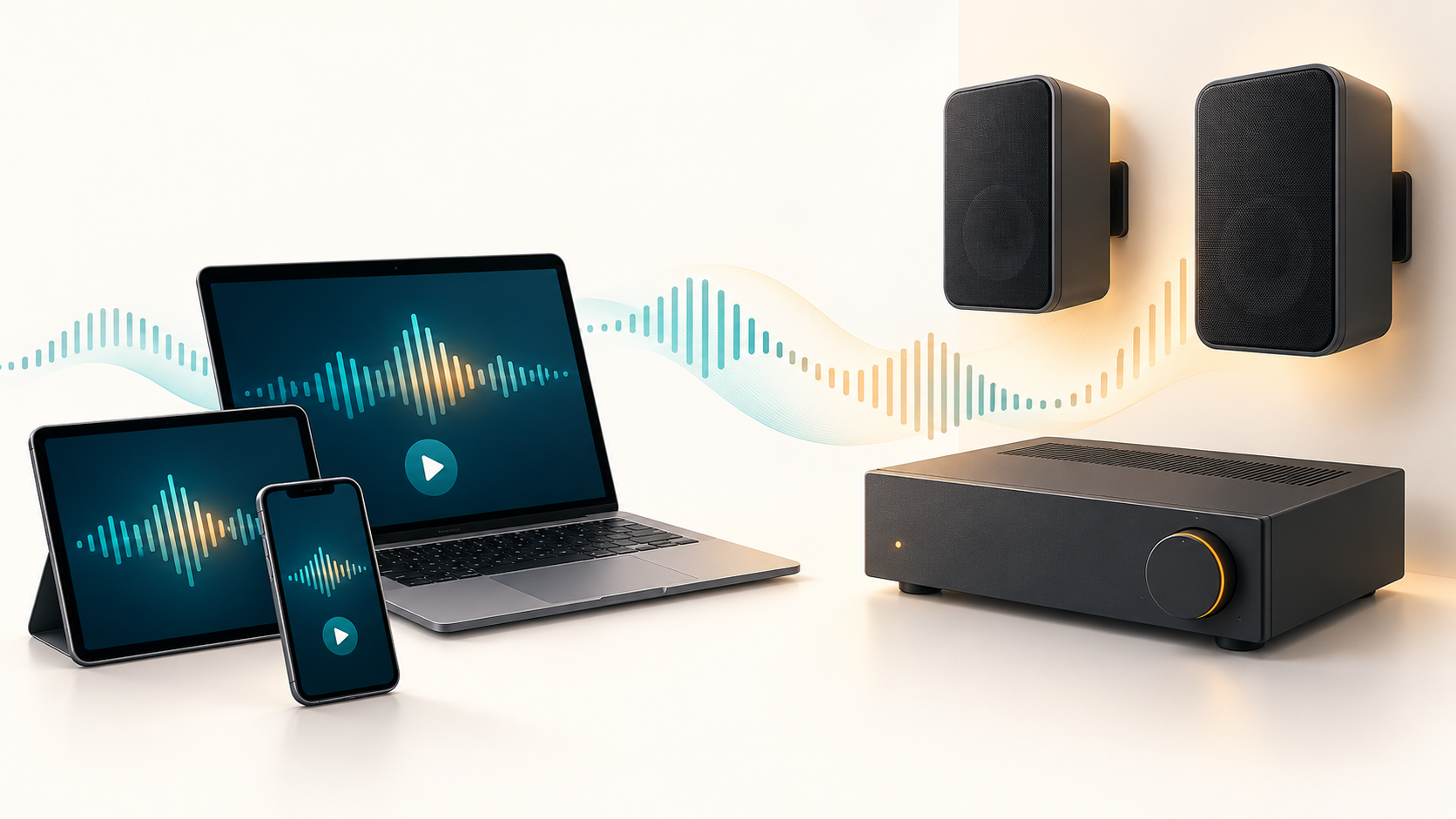
Jump to: Choose your device · Connect your sound system · Find the right cable · No sound?
1. Understand where the music goes
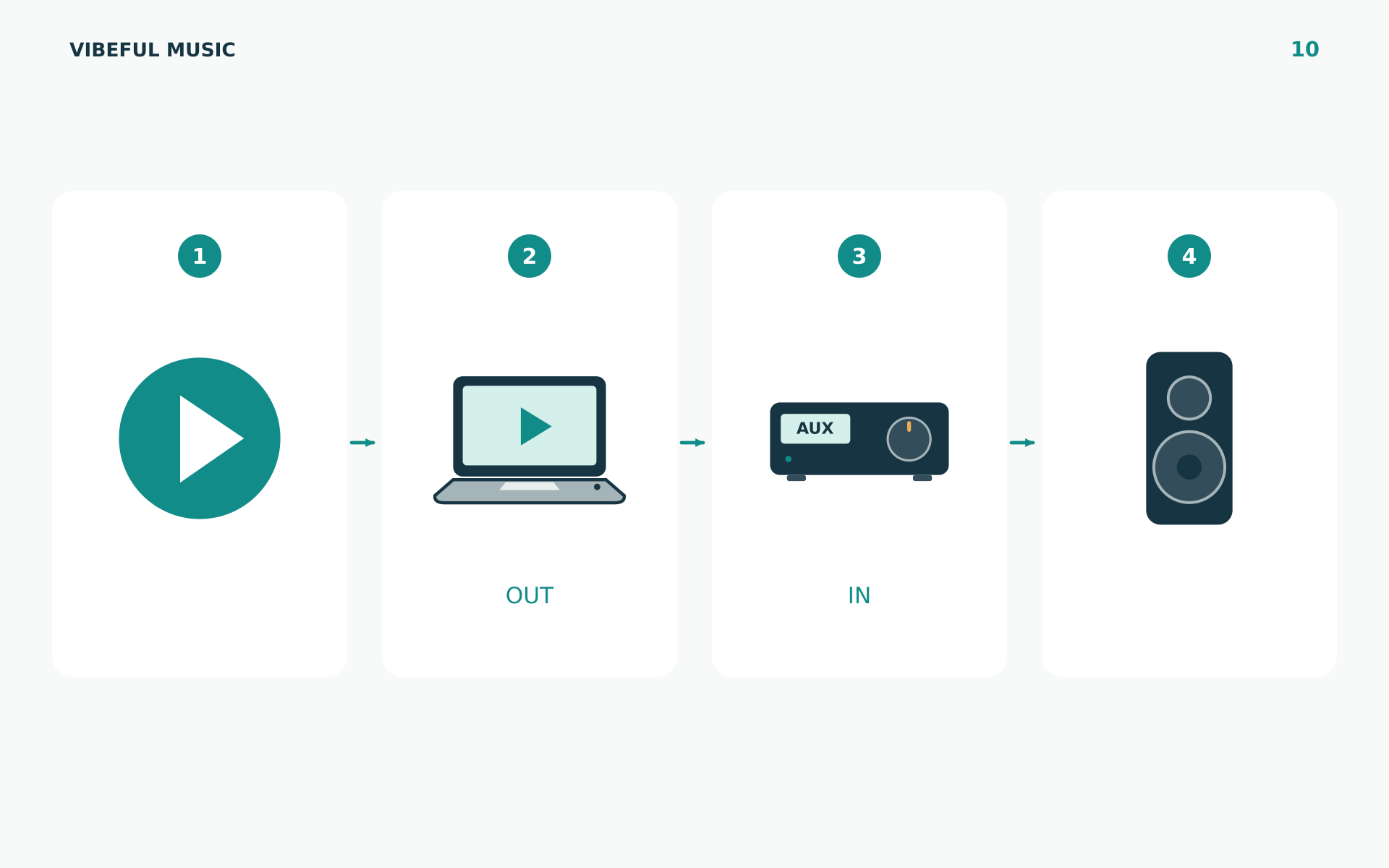
Your playback device is the computer, tablet or phone running the player. Its audio output sends sound to an input on your sound system.
An amplifier powers connected passive speakers. Powered speakers already contain amplification. A mixer combines or controls sources such as music and an instructor’s microphone.
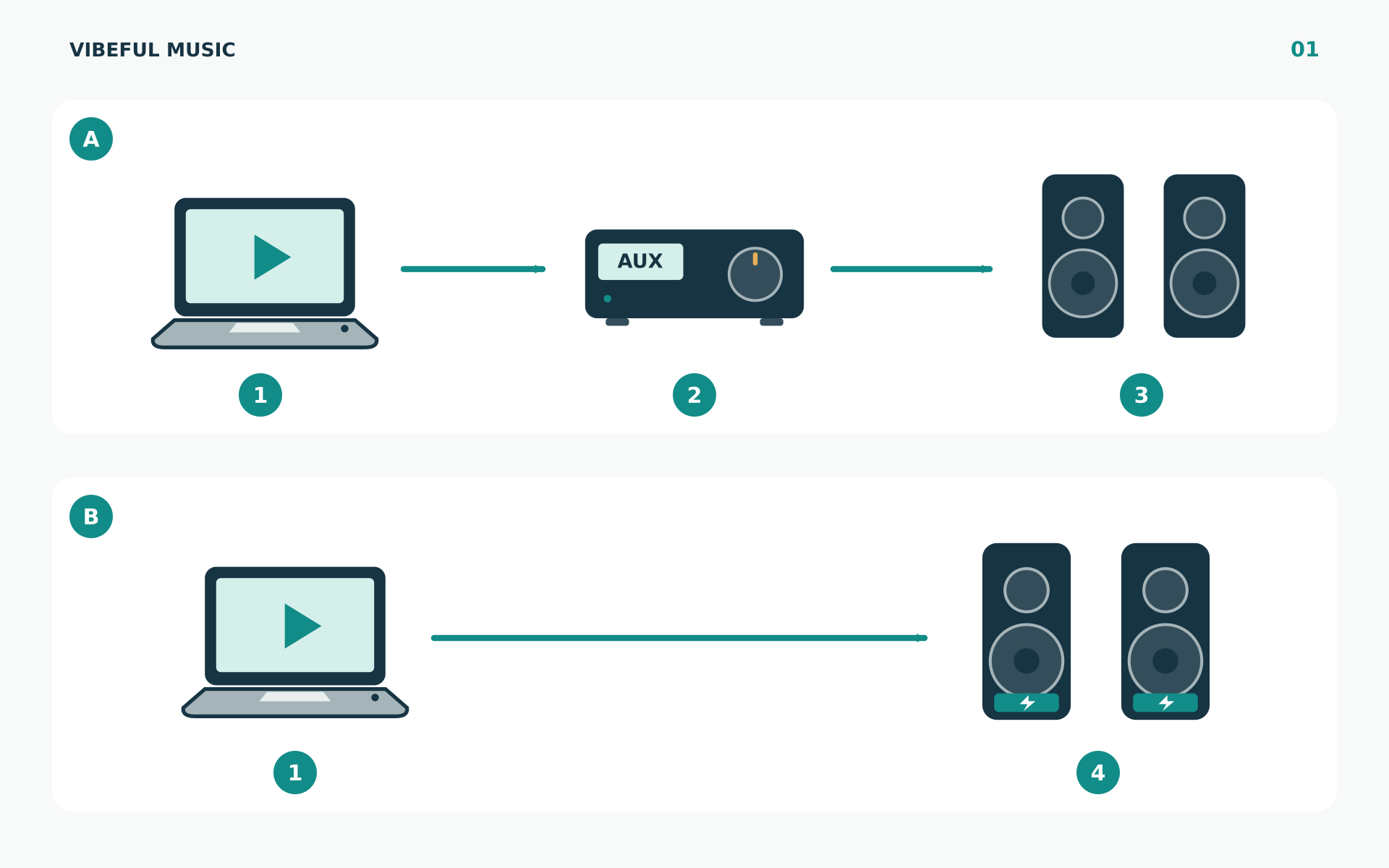
A typical installation has one of these paths:
- Playback device → amplifier → installed speakers.
- Playback device → powered speakers.
- Playback device → Bluetooth speaker, or Bluetooth receiver connected to an amplifier.
The internet connection and the speaker connection have different jobs. Internet access brings the online service to your device. A cable or supported wireless audio connection takes the sound to the speakers.
If a phone is supplying the audio, it is part of the playback system. Taking it away can stop the music. A phone used only to control a separate player is a different arrangement; confirm that this control method is supported before relying on it.
2. Check what you already have
Before buying anything, find the equipment currently supplying your speakers. It may be an amplifier or mixer near reception or in a cabinet.
Take a photo of its model label, the connected cables and the selected input before making changes. If the system already plays music, identify where that music enters it. You can often reuse an appropriate input while keeping the existing speaker wiring.
Have these ready:
- Access to your Vibeful account.
- A supported playback device and its charger or power supply.
- Internet access for initial setup.
- Your amplifier, powered speakers or other audio equipment.
- A suitable audio cable, adapter or supported wireless connection.
If you see unfamiliar terminals or labels such as 70 V or 100 V, ask your installer to identify the music input. Connect the new music source at the appropriate input; leave the installed speaker wiring to someone who understands that system.
3. Choose and prepare your playback device
A device that stays at the venue makes daily operation easier. Before using an older device, confirm that its operating system and player environment are supported.
Windows desktop PC or laptop
Connect the audio cable, USB audio device or Bluetooth equipment. Then open Settings → System → Sound and select the intended device under Output. If sound comes from the computer, check this selection first. Microsoft’s audio guide explains output selection and mute checks.
Keep a laptop connected to power. Leave its lid open during initial setup and test screen-off, sleep and lid behaviour separately before leaving it unattended. Schedule updates outside opening hours.
Mac or MacBook
Open System Settings → Sound → Output and choose the connected audio device. A device connected through the headphone socket can appear as “Headphones.” Check output volume and mute. See Apple’s sound-output instructions.
Keep a MacBook powered and its lid open until you have verified the intended operating arrangement. Do not assume music continues whenever the display turns off or the lid closes.
iPad or iPhone
First identify the physical connector: a headphone socket, USB-C or Lightning. A model without a headphone socket may need a compatible audio adapter. USB-C iPads can use supported USB audio equipment or an appropriate headphone adapter; Apple explains the available connections.
Open Vibeful using its supported access method and test the connected output. For long sessions, arrange charging as well as audio. Test screen locking and switching apps on the exact device you will use.
Android phone or tablet
Check whether the device has a headphone socket or needs a compatible USB audio adapter. Connect the cable or pair the speaker, then check the selected media output.
For Bluetooth, open the Bluetooth settings, select the speaker or receiver and complete pairing. Names and menus vary by device; Google’s Android instructions explain the standard process.
Test lock-screen and background playback before normal use. If power-saving settings interrupt playback, use the device manufacturer’s guidance and the configuration supported by Vibeful.
Mini PC or another dedicated device
A mini PC can serve as the playback computer if it runs a supported operating system and player. Plan for the screen, keyboard or other access needed to set it up and recover from an interruption.
Confirm compatibility before purchasing a network player, smart TV or specialist streaming box. A browser, USB port or Wi-Fi connection alone does not establish Vibeful support.
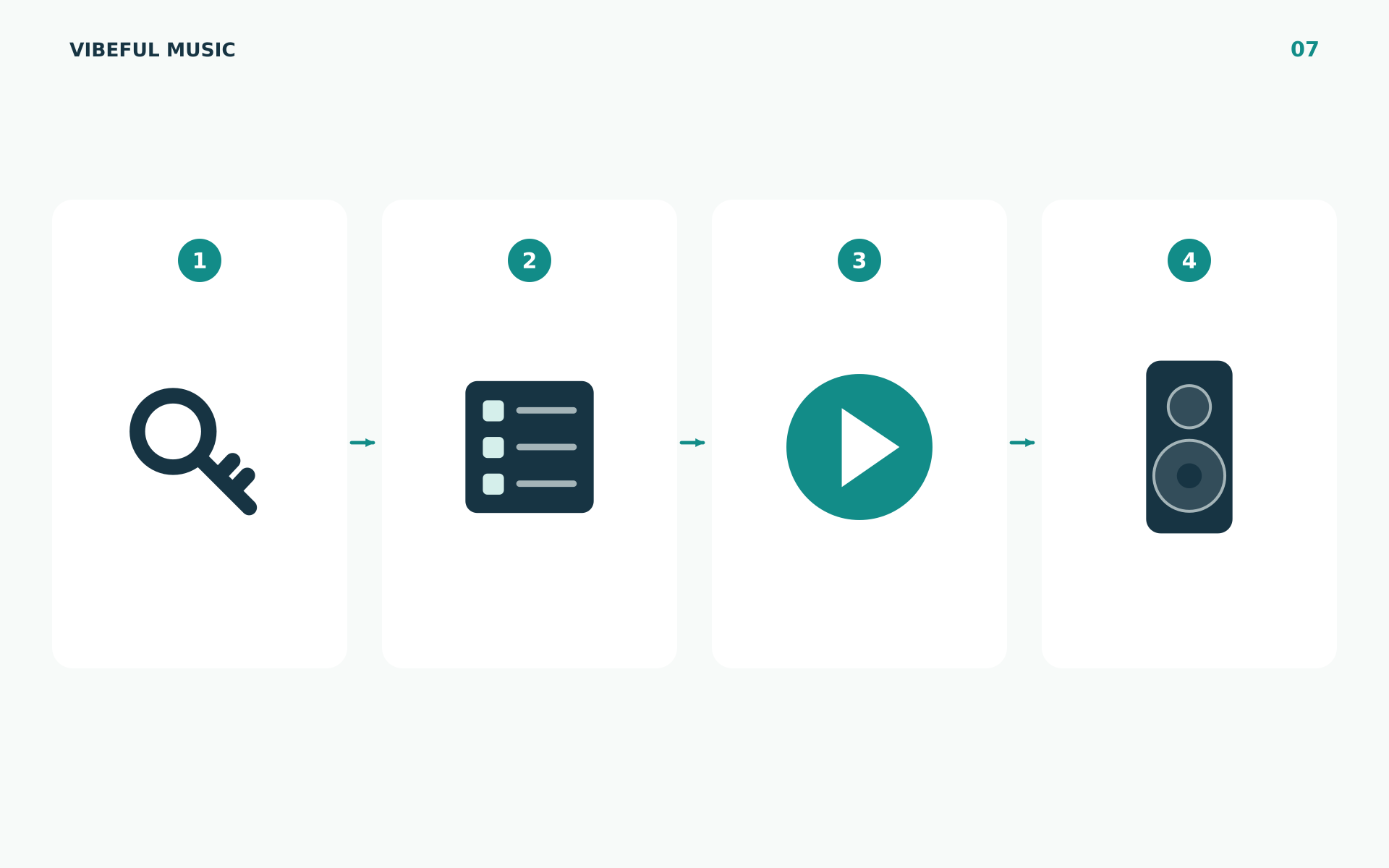
4. Sign in and start your first track
- Connect the playback device to the internet.
- Open Vibeful Music using the sign-in link or access instructions provided for your account.
- Sign in. If access fails, check the email address and use the account recovery option available to you.
- Open a playlist and start a track.
- Check that the player shows playback progressing.
If the device has built-in speakers, a brief low-volume playback check can help confirm the service works. After connecting your sound system, select its output again.
Next, follow the connection route below that matches your equipment.
5. Connect to your sound system
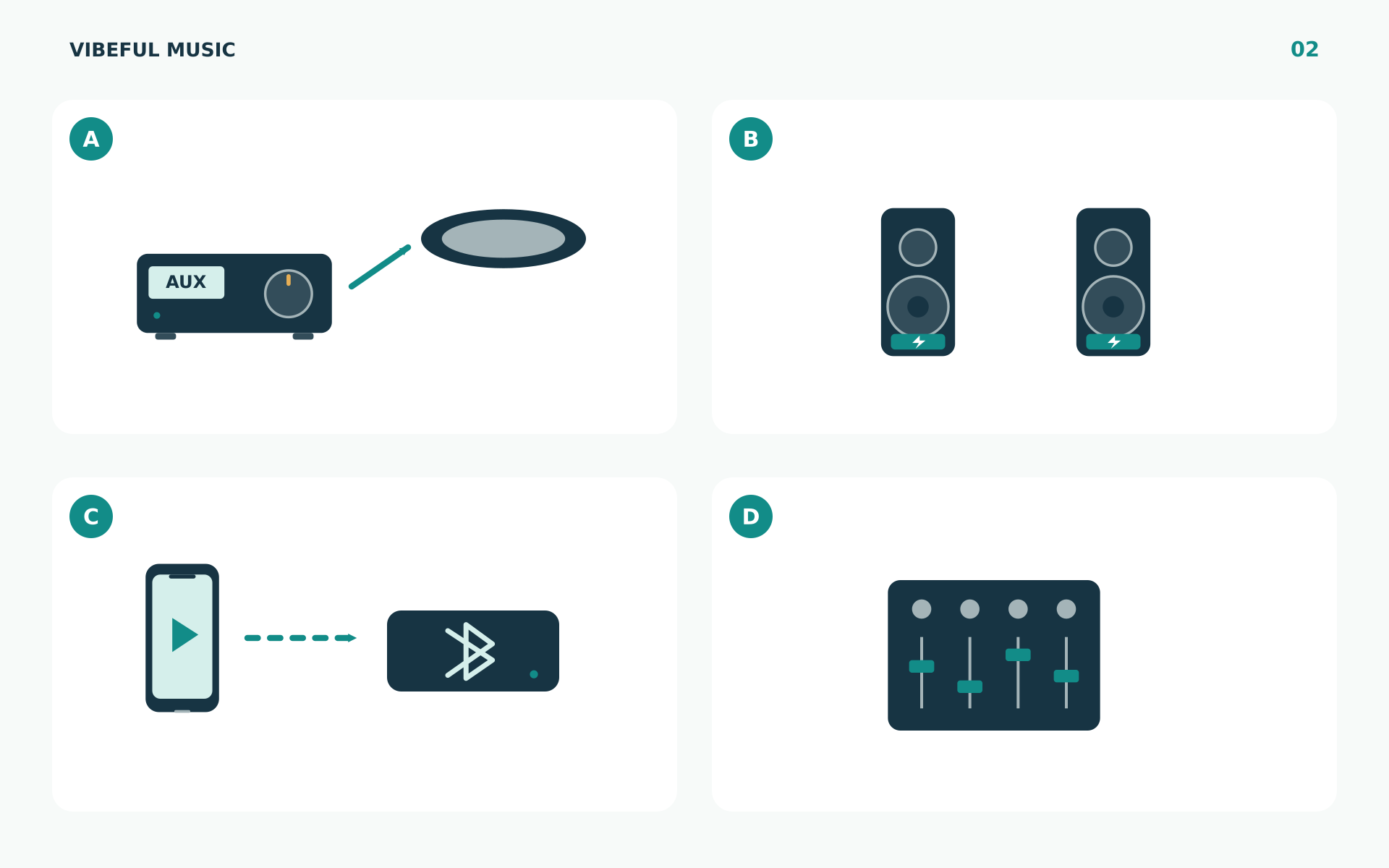
A. An amplifier with AUX or LINE input
You need: a compatible output from the playback device and a cable matching the amplifier’s line input. Common arrangements use a 3.5 mm stereo cable or a 3.5 mm stereo-to-two-RCA cable.
- Lower the volume and follow the equipment’s instructions for making connections.
- Connect the cable to the playback device’s audio output or audio adapter.
- Connect the other end to the amplifier’s appropriate AUX, LINE IN or equivalent input.
- With an RCA pair, connect left to L and right to R; these are commonly white and red.
- Select that same input on the amplifier’s front panel.
- Select the correct output on the playback device.
- Start music and raise the levels gradually.
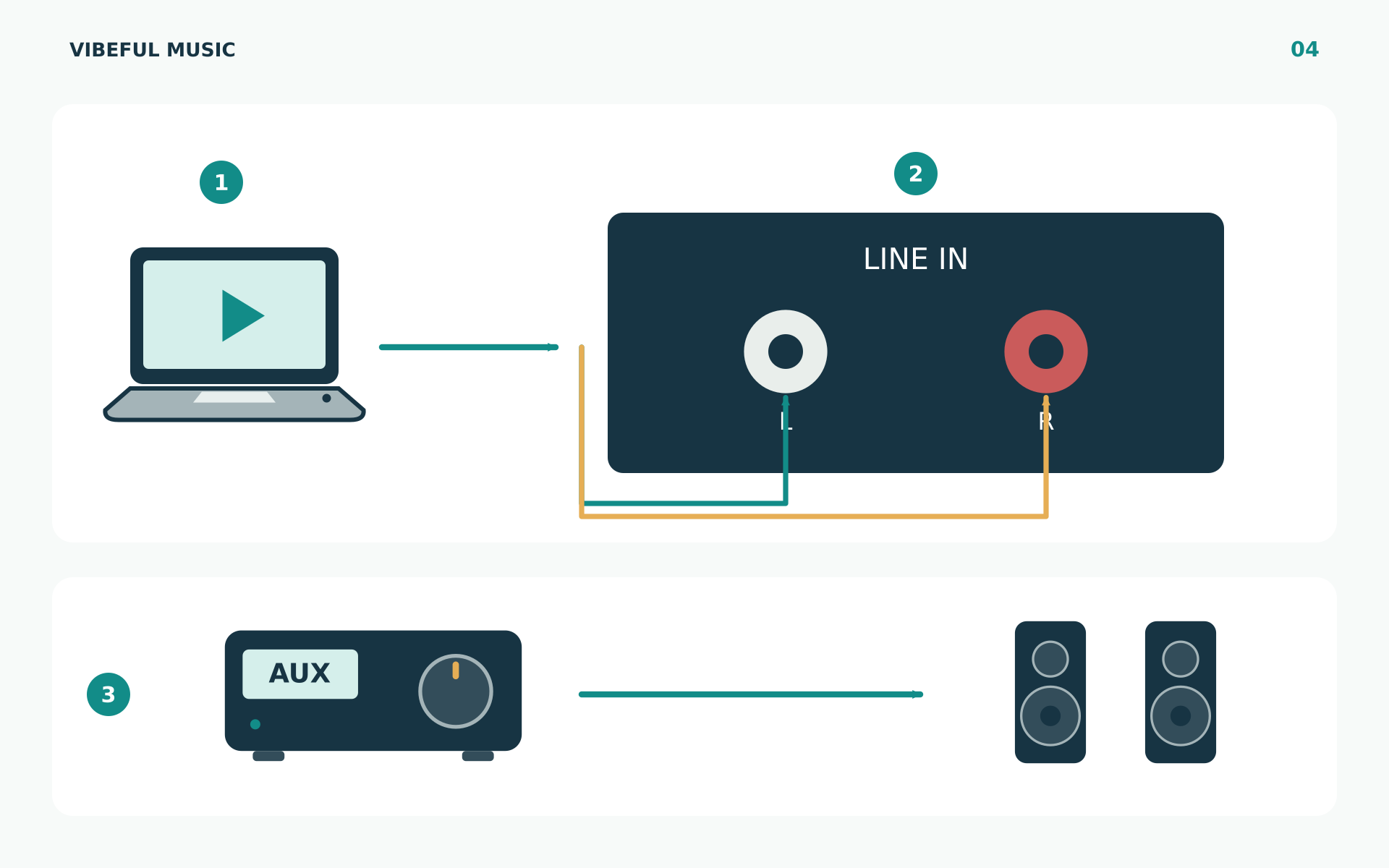
What you should hear: music through the installed speakers.
If you hear nothing: check the selected amplifier input, device output and mute controls. A cable plugged into an output socket will not feed music into the amplifier. Do not substitute a PHONO or microphone input for the correct line input, and do not connect a phone to speaker terminals.
B. Powered speakers
You need: powered speakers with a compatible audio input and the appropriate source cable or interface.
Connect the playback device to the speaker’s suitable input, select that input where necessary and start at a low volume. Follow the speaker manual for connecting a stereo pair; the link between speakers varies by system.
Powered and passive speakers require different arrangements. Yamaha’s speaker guide explains the amplifier’s role.
What you should hear: music from the intended speaker or pair. If only one side plays, check both channels and the connection between speakers.
C. Bluetooth speaker or receiver
- Power the speaker or receiver and activate its pairing mode.
- Open Bluetooth settings on the playback device.
- Select the correct speaker or receiver and complete pairing.
- Check that it is also selected for audio playback.
- If using a receiver connected to an amplifier, select that amplifier input.
- Start a track and adjust volume gradually.
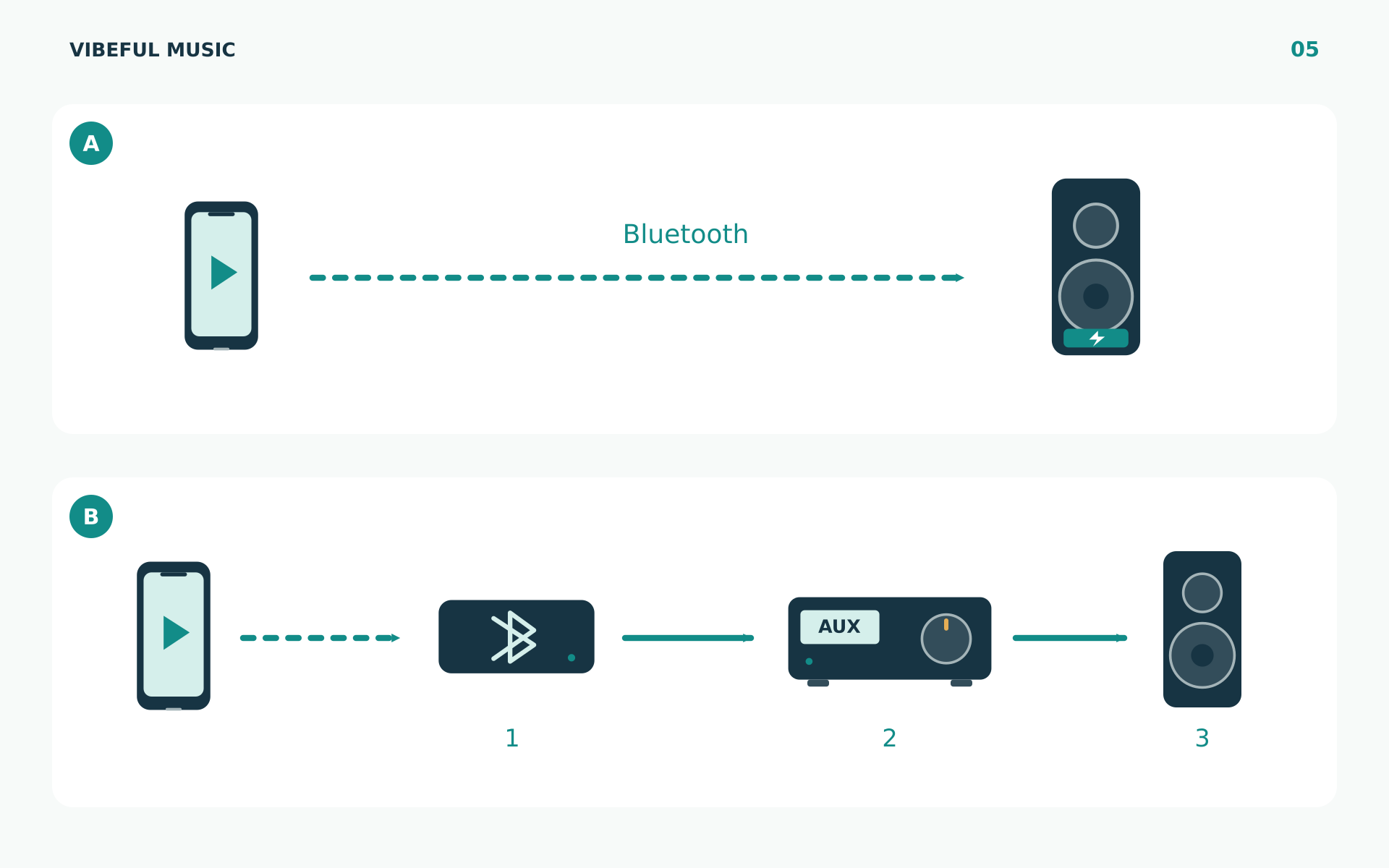
A Bluetooth connection can exist without being the selected sound output. Microsoft’s Bluetooth troubleshooting guide includes this check.
Keep the source device within reliable range. If another phone still holds the connection, disconnect that source and reconnect the designated music device. Test reconnection after an ordinary interruption before using the setup all day.
D. USB audio adapter or interface
Connect an interface supported by your device, install any manufacturer-required software and select it as the audio output. Then connect its suitable audio outputs to the amplifier, mixer or powered speakers.
Check what a USB socket on your sound equipment actually does. It may not accept live audio from your computer. The device manual should identify the supported connection and signal direction.
E. Mixer or installed professional audio system
Use the appropriate line input and check the channel’s mute, level and routing, as well as the master output. If a microphone is already connected, leave its settings intact while identifying the music channel.
Connector shape alone does not establish the input’s function. For example, Yamaha’s mixer documentation distinguishes microphone and line inputs by model. For XLR or 6.35 mm connections, ask your installer to confirm the correct cable or interface and stereo arrangement.
F. Network speakers, casting or unfamiliar inputs
Ask Vibeful to confirm the method supported by your exact speaker system. Device-level audio routing and a built-in music-service integration are different things.
If your system only has optical, HDMI or unfamiliar connections, send its model details before buying adapters. Some arrangements need an active converter or another audio interface. A matching plug shape does not establish compatibility.
6. Find the right cable or adapter
Choose the cable by matching the playback device’s output to the sound system’s input.
| Your device has | Your sound system has | Typical connection to check |
|---|---|---|
| 3.5 mm headphone/audio output | 3.5 mm AUX input | 3.5 mm stereo audio cable |
| 3.5 mm headphone/audio output | Left/right RCA line inputs | 3.5 mm stereo-to-two-RCA cable |
| USB-C without a headphone socket | AUX or RCA line input | Compatible USB-C audio adapter, then the matching cable |
| Lightning without a headphone socket | AUX or RCA line input | Compatible Lightning audio adapter, then the matching cable |
| USB audio support | An appropriate line input | Compatible USB audio interface and its output cable |
| An unfamiliar connector | An unfamiliar input | Confirm both models before ordering |
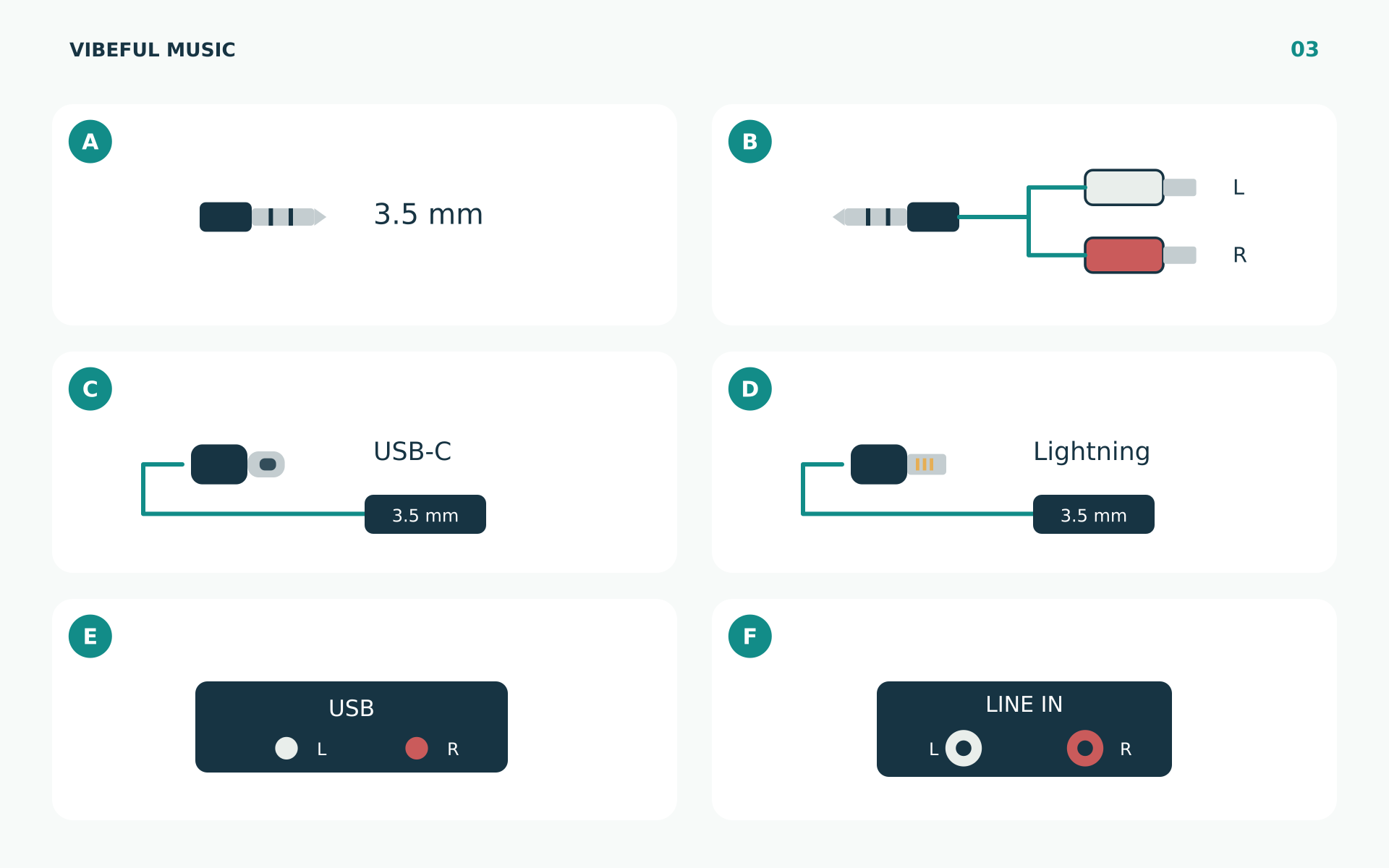
An adapter must support audio on your specific device. For USB-C-to-analogue connections, choose a suitable audio adapter with digital-to-analogue conversion. A charging adapter is not automatically an audio adapter.
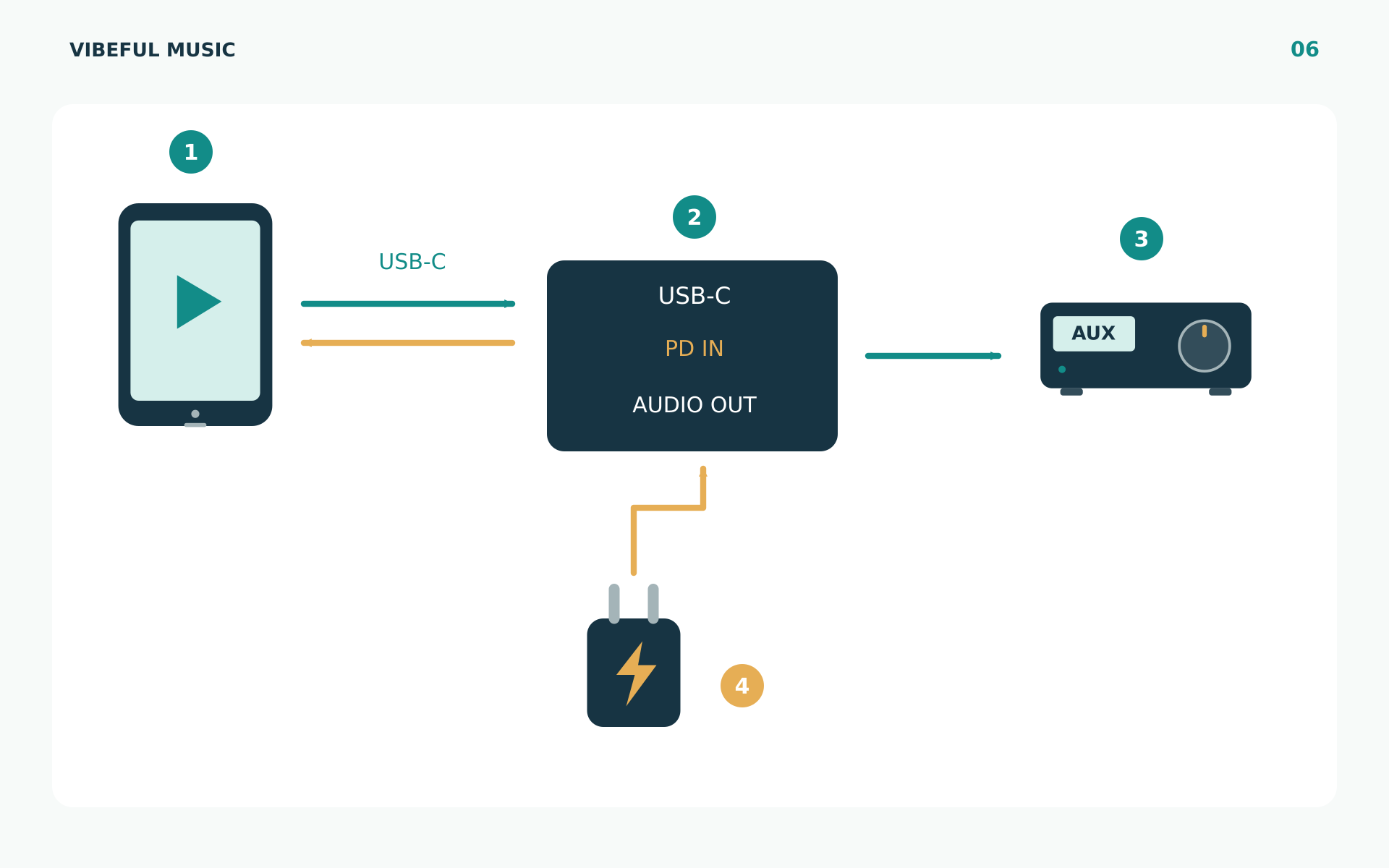
For simultaneous charging and music, use a compatible audio-and-charging adapter or hub. Confirm the device model, audio output and power requirements, then test with both functions connected. Do not assume a basic splitter supports them.
7. Set the volume and keep music playing
Start with a suitable playlist and modest volume. You may have controls in the player, on the device and on the amplifier or speakers. Adjust one at a time until playback is clear and comfortable.
If audio distorts, lower the relevant levels and check that you are using the correct input. If it is very quiet, check mute, input selection and each volume stage before turning everything up.
Before the first full day:
- Keep the playback device powered, secure and ventilated.
- Close unrelated media applications and silence unnecessary alerts.
- Test screen locking, app switching and any calls the device may receive.
- Test a staff handover without changing accounts or disconnecting audio unnecessarily.
- Check what staff must do after a restart or power interruption.
- Record the correct input and output so another employee can restore them.
Keep security updates enabled and arrange them at a suitable time. A device restarting successfully does not prove that music restarts automatically.
8. What happens if the internet disconnects?
Online playback needs internet access. If offline playback is available for your Vibeful account and device, prepare it before depending on it:
- Connect to the internet and open the player.
- Use the available offline-download function for the music you need.
- Wait until the required downloads are complete and check for failures.
- Test playback with only the music device’s internet connection interrupted.
- Test reopening the player separately if you need that behaviour.
- Reconnect according to the access conditions shown in your account or provided by Vibeful.
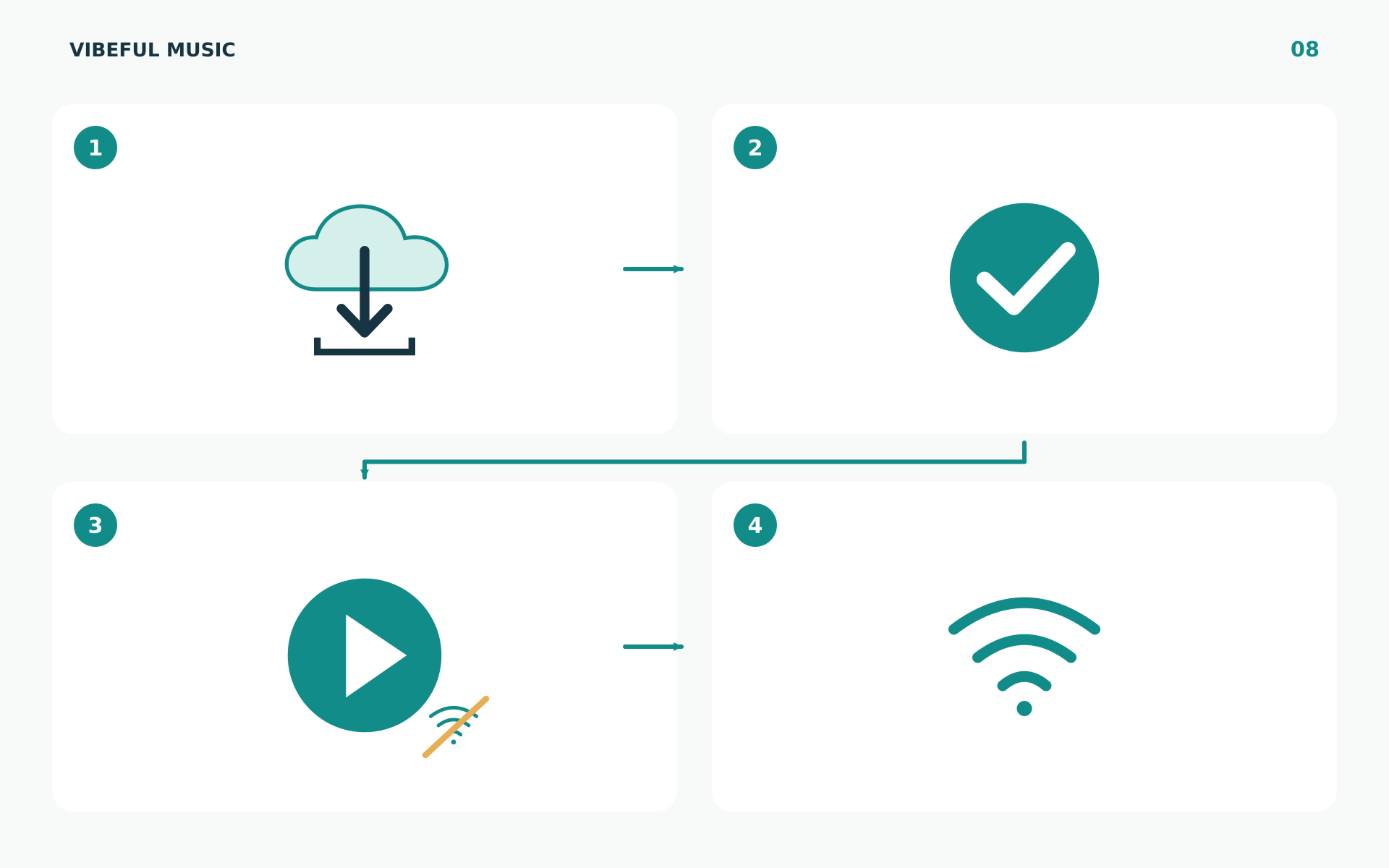
A few seconds of buffered music is not proof of offline readiness. Check the supported offline period and restart behaviour for your setup. If no offline function is available, plan to maintain internet access and contact Vibeful about supported alternatives.
Do not clear browser data, change profiles or reinstall as your first troubleshooting step; locally stored music may need downloading again. Internet loss and a disconnected Bluetooth speaker are separate problems: offline music still needs a working audio connection.
9. Play music in more than one zone
First decide what you want:
- The same music everywhere: one source may feed multiple zones through an appropriate sound system.
- The same music at different volumes: the system needs suitable zone volume control.
- Different music in different zones: you need independent playback and audio routing, plus the relevant service access.
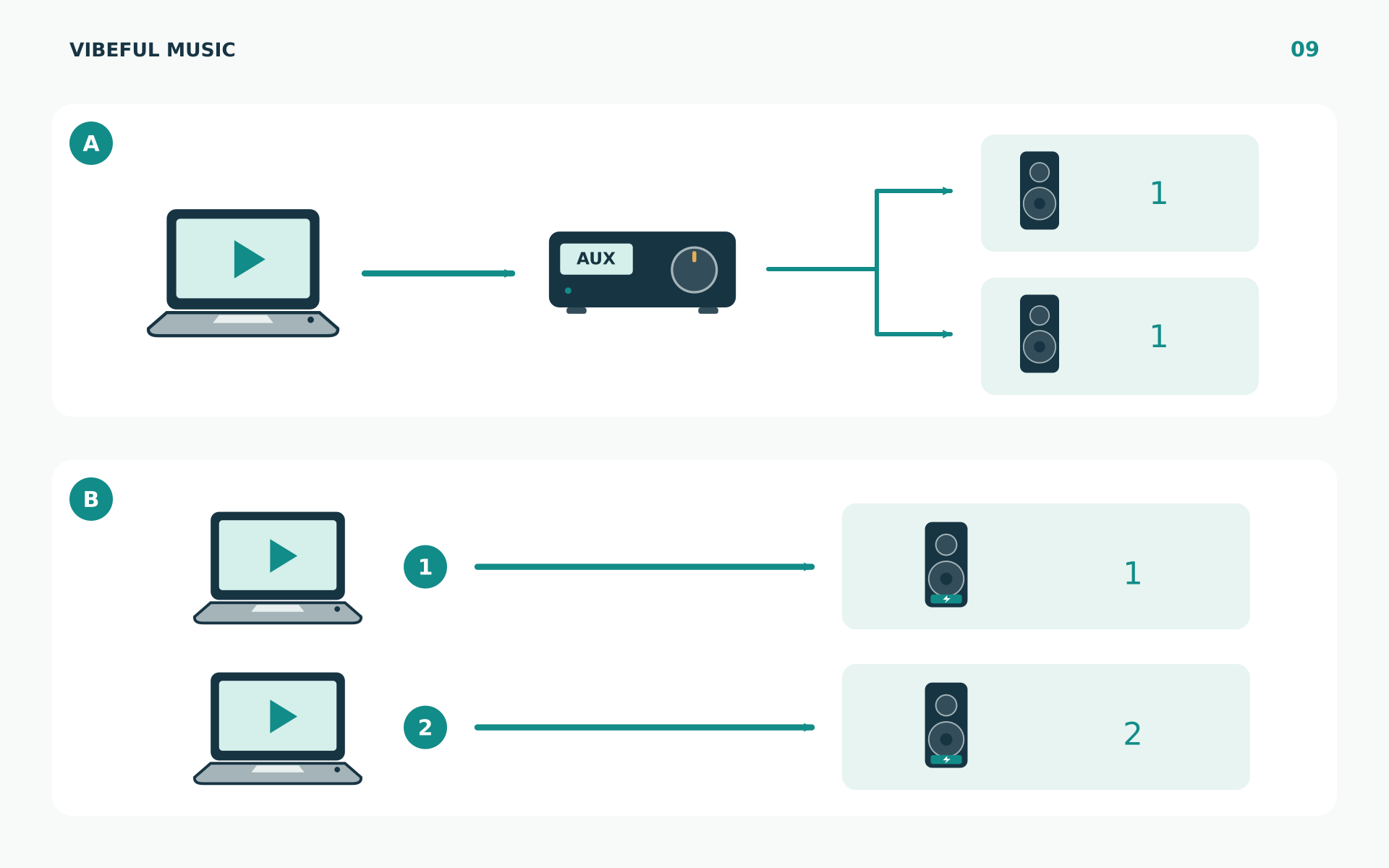
The number of speakers does not determine the number of players or subscriptions. Confirm Vibeful’s current zone and simultaneous-playback options before adding devices. Also confirm whether another device can remotely control playback or whether it starts a separate session.
10. No sound? Check the path in order
Start at the player and work towards the speakers. Change one thing at a time.
| Problem | First checks |
|---|---|
| The player progresses but nothing is audible | Player/device mute, selected output, cable, amplifier input and volume |
| Sound comes from the laptop or phone | Select the external output and check adapter or Bluetooth connection |
| Bluetooth is connected but silent | Check audio-output selection, receiver volume and amplifier input |
| Music stops when the screen locks | Check the supported device settings and retest lock/background behaviour |
| Music stops when a phone leaves | Check whether that phone supplies the music |
| Only one speaker plays | Check left/right plugs, fully inserted connectors, balance and routing |
| Sound is distorted or too quiet | Check the input type and source, channel and master levels |
| There is buzzing or intermittent noise | Check connections and follow the equipment’s troubleshooting guidance |
| Music stops after an internet interruption | Check connectivity and whether offline music is ready on this device |
| Sign-in or access fails | Check account details, the exact error and the available recovery route |
If you need help, send Vibeful your playback-device model, operating system/browser, audio-equipment model and a photo of the connections. Describe what happens when you press play. Include the exact error message if there is one, while hiding passwords and unrelated personal information.
11. Frequently asked questions
Can I use my existing speakers?
Often, provided the existing system has a suitable input and is working correctly. Identify the amplifier or powered speakers and their input before buying new equipment.
Do I need to install an app?
Use the access method currently supported for your device. Follow the instructions supplied with your Vibeful account; install a separate app or web app only where it is offered and supported.
Can I use my phone for everyday playback?
A supported phone can be a source, but it needs to remain available, powered and connected. A venue-owned device avoids music depending on a particular employee’s phone.
Can I close my laptop or lock my tablet?
Test these separately on your actual setup. Closing a lid, turning off a display and locking a device can have different effects. Use the supported operating settings before leaving music unattended.
Can I charge a tablet while playing through a cable?
With an appropriate compatible adapter or hub, this can be possible. Check charging and audio support for the exact device and accessory, then test both at once.
Will music start automatically each morning?
Do not assume it will. Follow the tested start-up routine for your setup. Automatic scheduling or recovery must be confirmed for the player and device you use.
Does connecting the speakers settle music licensing?
No. Audio connections and permission to use the music are separate matters. Check the scope of your Vibeful agreement and any applicable permissions for your intended use.
12. Your daily opening checklist
- The playback device and sound system have power.
- Vibeful is open and signed in.
- The intended playlist is playing.
- The correct output and amplifier input are selected.
- Music is audible at suitable levels in every intended area.
- Offline readiness has been checked where supported and needed.
- Staff know the restart procedure and where to get help.
Once the setup works, label the cable and amplifier input and keep a photo of the connections. A short note beside the music device can make the next shift’s start much easier.